Reviewer Guide
Reviewing a record: accepting or declining an invitation, finding your review assignments, and completing and submitting a review.
For researchers, community members and station staff asked to review a record on an iPlaces station (examples below use iPlaces Gump Station).
1. The invitation
A station editor invites you by email. The message comes from the station (for Gump, iPlaces Gump Station) with the subject "Reviewer invitation" and names the record you're being asked to review. It has two links: Accept Invitation and Decline Invitation.
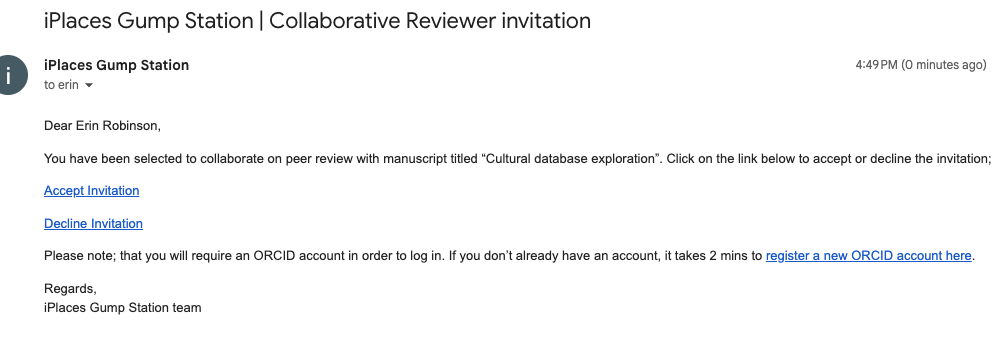 An invitation email. This one is for a collaborative review; a standard invitation reads the same apart from the wording "Reviewer invitation".
The links are personal to you, so please don't forward the email. If someone else would be a better reviewer, decline and suggest them (see §2).
You'll need an ORCID iD
iPlaces uses ORCID for login, with no separate username or password. If you don't have an ORCID iD, register one first at https://orcid.org/register (it's free, takes about two minutes, and stays with you across institutions).
2. Accepting or declining
To accept, click the accept link and log in with ORCID when asked. The review is added to your account and you can start it from your dashboard.
To decline, click the decline link. A short page lets you:
- share your reasons for declining (optional),
- tick I don't want to be contacted again, and
- add Suggested Reviewers who might be a better fit.
Click Submit Feedback to send this to the editors.
If you already have an account on the station, you can also accept or decline from your dashboard (§3) with the Accept and Decline links next to the record.
3. Finding your review assignments
Log in at your station's publishing site, e.g.
https://publish.iplacesalliance.org/gumpstation, with Login with ORCID.
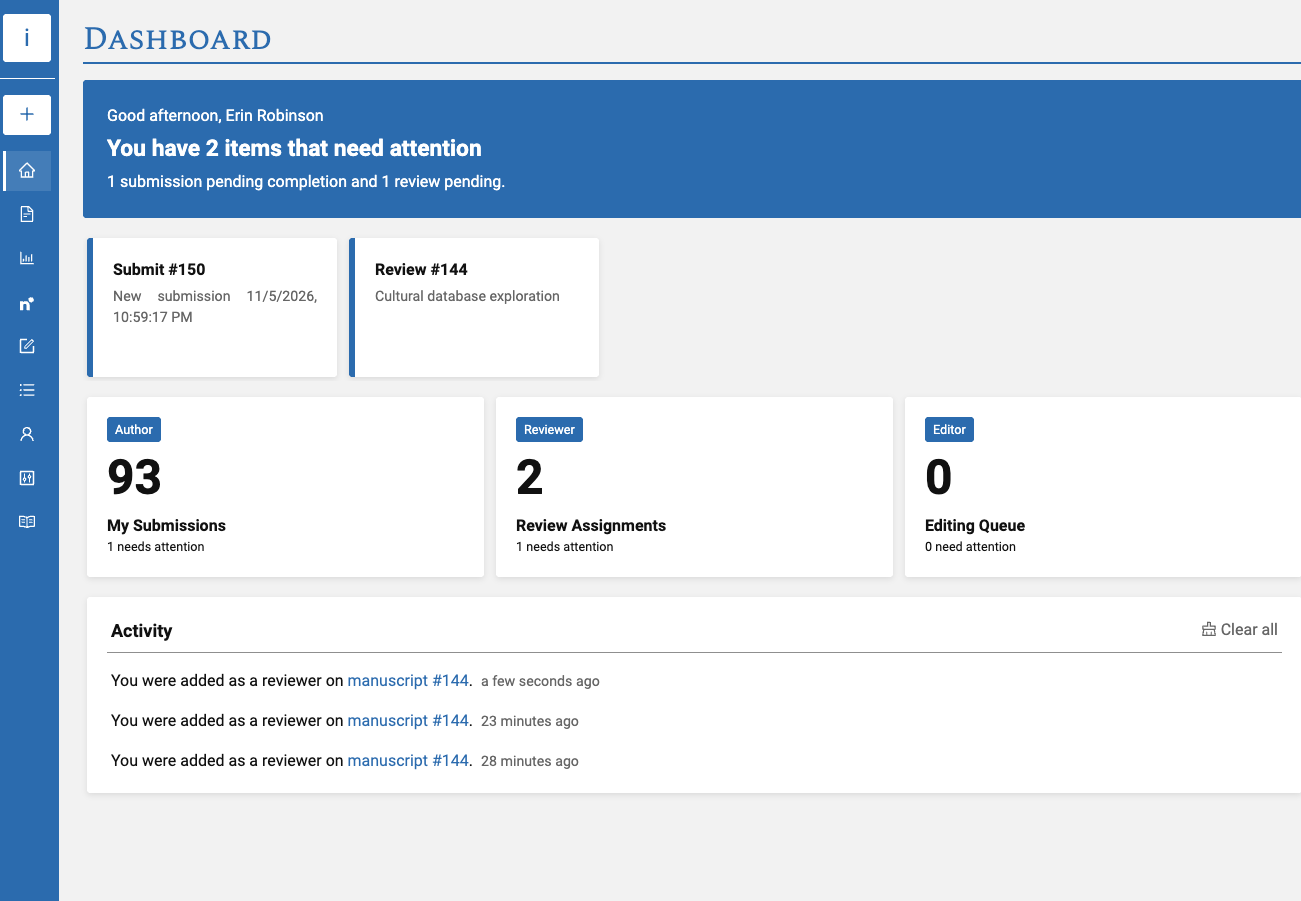 The dashboard. A review waiting for you appears as a card at the top (here, Review #144) and in the Activity list.
Click the review's card at the top to go straight to it, or click the Review Assignments card to see all your reviews:
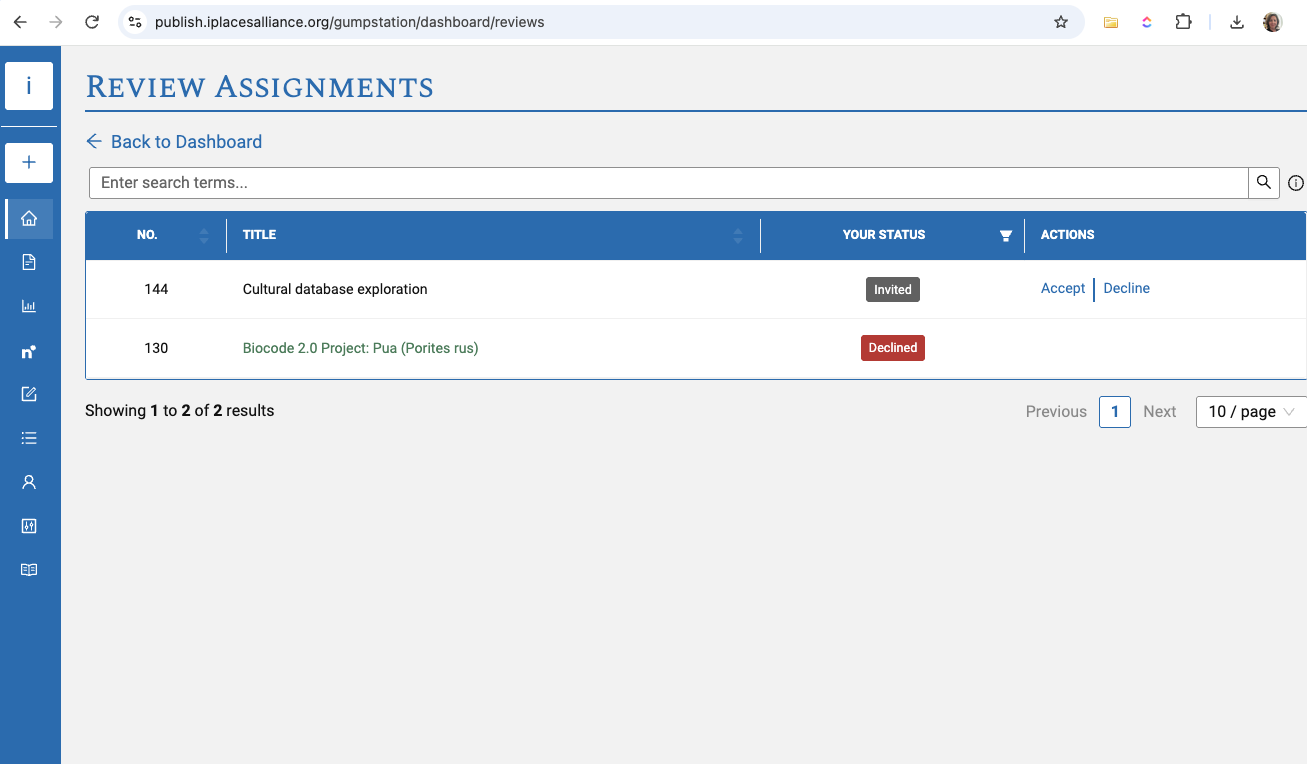 Review Assignments. Your Status shows where each review stands, and Actions shows what you can do next.
| status | what you can do |
|---|---|
| Invited | Accept or Decline |
| Accepted | Do Review to start |
| In Progress | Continue Review to pick up where you left off |
| Completed | your review has been submitted |
| Declined | you declined this invitation |
4. Doing the review
Do Review opens the record with two tabs: Metadata (the record itself) and Review (your review form).
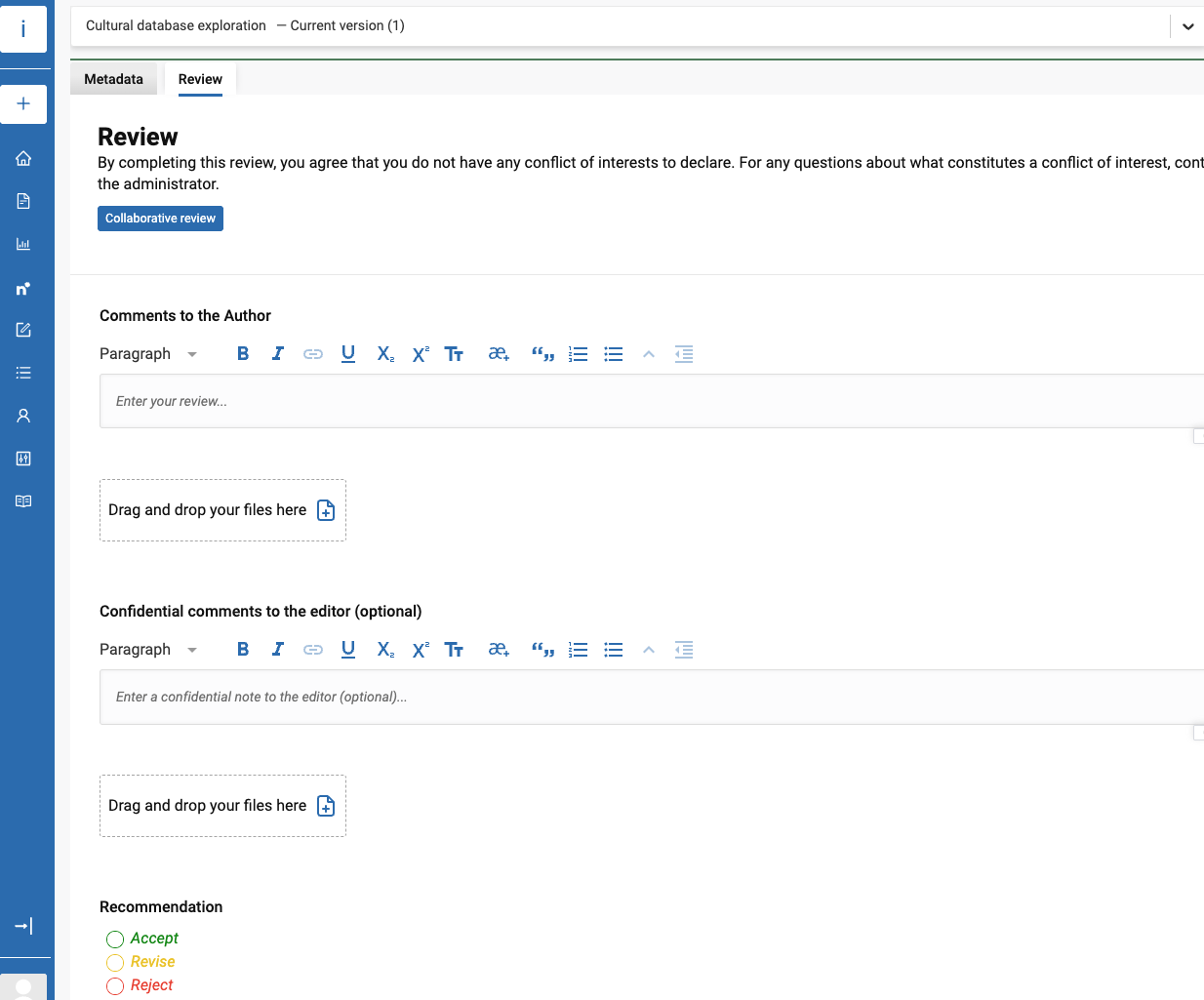 The Review tab. Completing the review confirms you have no conflict of interest to declare.
-
Read the record on the Metadata tab. If the record has more than one version, the version picker at the top lets you see earlier ones.
-
On the Review tab, fill in the form. At Gump it has:
- Comments to the Author: your review, which the authors can see. You can attach files by dragging them into the box below.
- Confidential comments to the editor (optional): seen by the editors only, with its own file box.
- Recommendation: Accept, Revise or Reject.
Other stations may ask different questions.
-
Click Submit when you're done. Your status changes to Completed and the editors can read your review.
You don't have to finish in one sitting. Your review shows as In Progress and you can return with Continue Review. If you need to add something after submitting, contact the station.
If you can't type in the form
If clicking into a text box and typing produces nothing, turn off the Grammarly browser extension for this site (click the Grammarly icon, then turn it off for this site) and hard-refresh the page (Cmd+Shift+R on a Mac, Ctrl+Shift+R on Windows). Other writing-assistant extensions can cause the same problem.
5. Collaborative and shared reviews
An editor may set up a review in one of two other ways:
- Collaborative review: you and other reviewers work on one shared review together. The invitation says so ("Collaborative Reviewer invitation"), and the record is marked Collaborative review in your list.
- Shared reviews: each reviewer writes their own review, and once you submit, you can see the other reviewers' reports under Other Reviews.
6. Who sees your review
Your review goes to the station's editors. Whether your name is shown to the authors, and whether any of the review is published with the record, is the station's editorial policy, so check the station's policy page (for Gump: https://iplacesalliance.org/gumpstation/editorial-policy/) or ask the editor who invited you.
7. Common problems
"This invitation does not match your current user": you're logged in with a different ORCID iD than the one the invitation is for. Log out, then open the link again and log in with the right ORCID iD, or ask the editor to re-send the invitation to your account.
"This invitation has already been accepted / rejected": the link has already been used. Log in and look under Review Assignments.
I can't find the email: check your spam folder for mail from the station address (for Gump: gumpstation@iplacesalliance.org). If you already have an account, the review may be waiting under Review Assignments even without an email; otherwise ask the editor to send the invitation again.
8. Getting help
Reply to any email from the station, or write to the station address (for Gump: gumpstation@iplacesalliance.org). Include the record's title.